

Про работу SRM также вы можете узнать из видео:
Формирование договора
После проведения закупки и выбора победителя можно заключить договор с выбранным поставщиком на поставку товаров или услуг. Формирование договора, его согласование и подписание можно выполнить напрямую на платформе. Этот процесс относится к SRM.
Создание договора
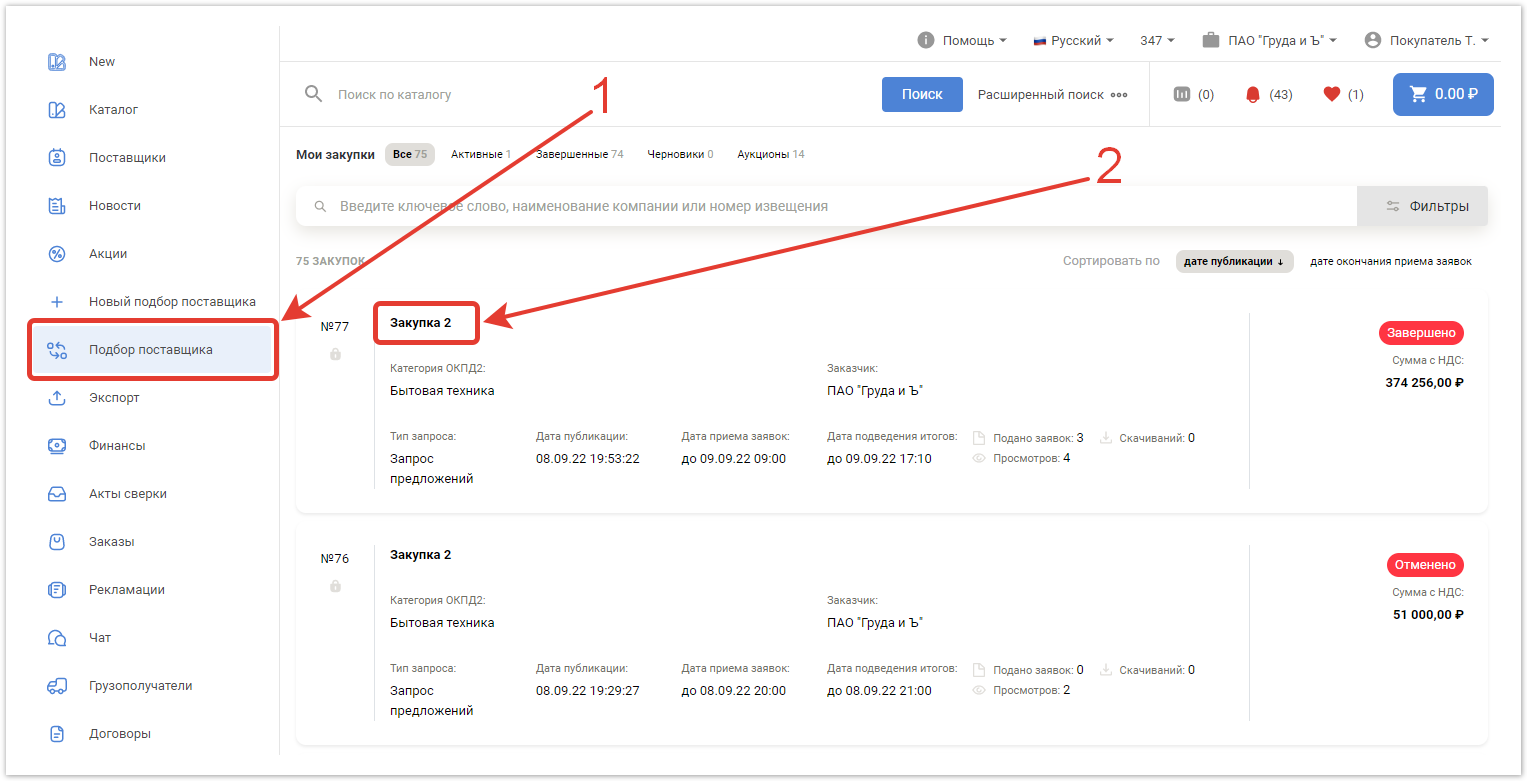
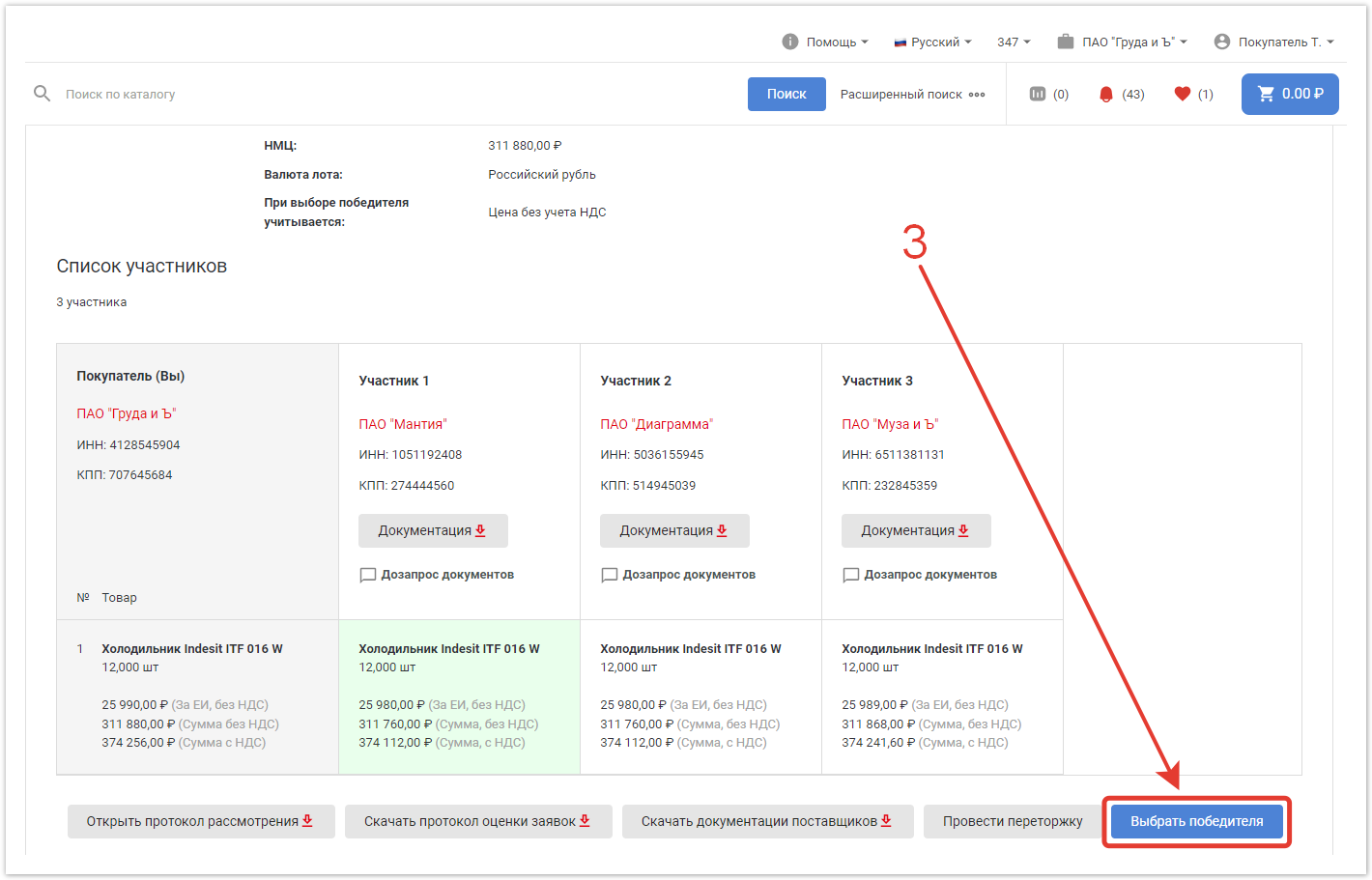
По завершении процедуры торга покупателю необходимо выбрать победителя. Для этого в разделе Подбор поставщика перейдите в нужный торг и кликните по кнопке Выбрать победителя внизу страницы.
После этого в окне каждого победителя появится кнопка Создать договор.
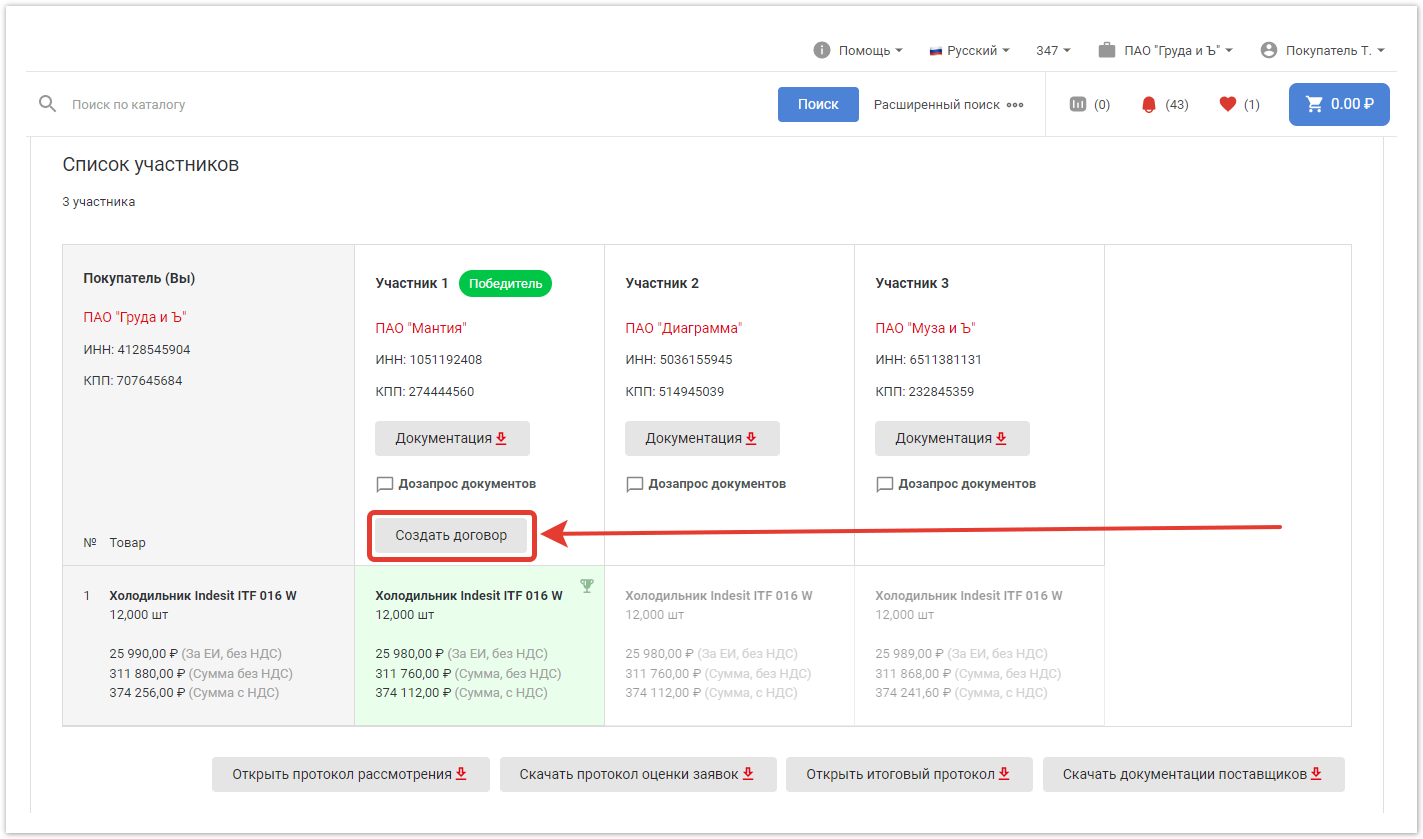
Кликнув по ней, вы перейдете в окно Создания договора к торгу. Информация, которая была внесена поставщиком и покупателем в процедуре торга подтягивается автоматически.
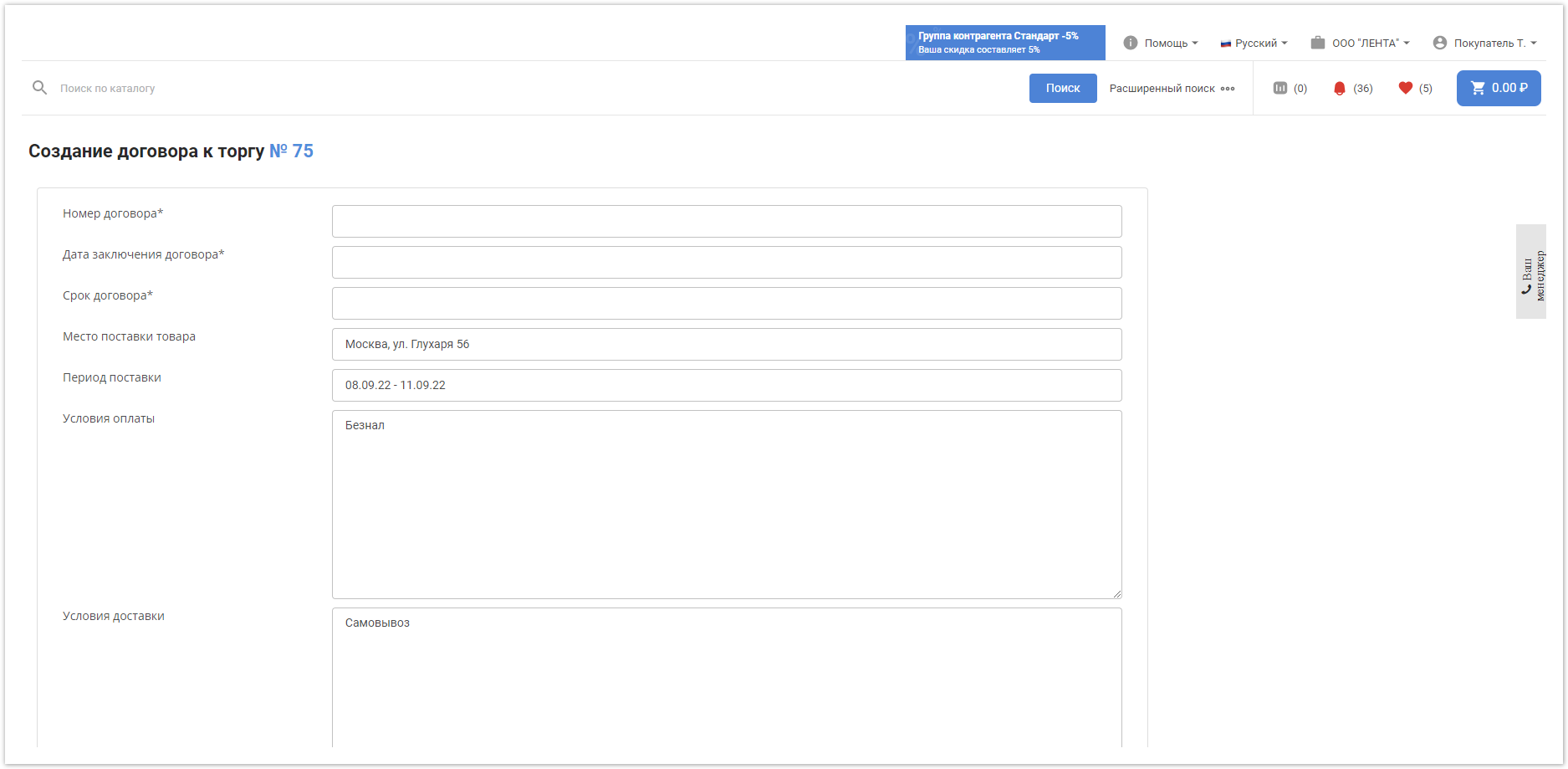
Номер договора — введите номер договора с поставщиком.
Дата заключения договора — в поле можно выбрать дату создания договора, отличную от текущей.
Срок договора — с помощью календаря выберите, на какой срок будет заключен договор.
Место поставки товара — адрес, по которому должен быть доставлен товар.
Период поставки — временной отрезок, в рамках которого должен быть доставлен товар.
Условия оплаты — способ оплаты заказа, указанный на этапе создания закупки.
Условия доставки — выбранный на этапе создания торга способ доставки товаров.
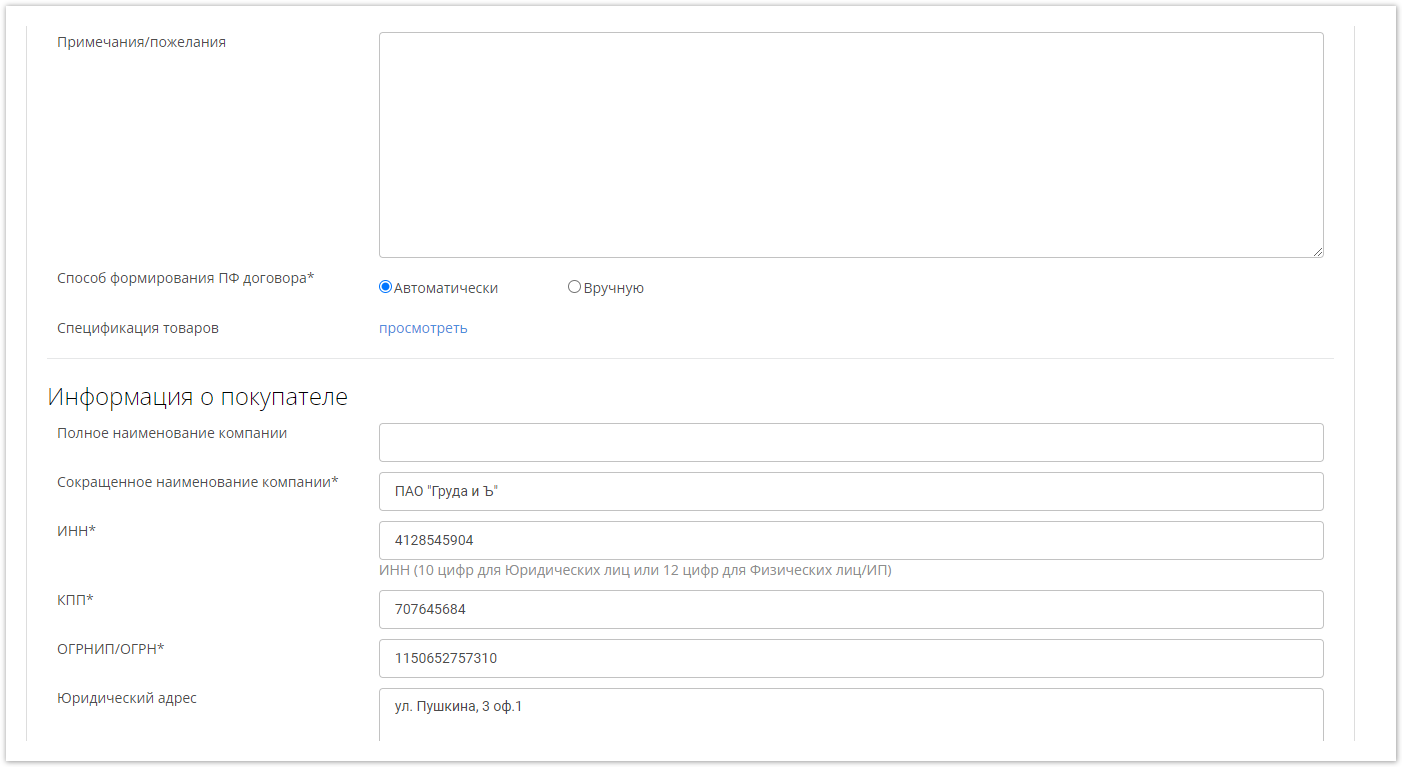
Примечания/пожелания — вы можете ввести в поле дополнительную информацию, которую необходимо учесть при создании договора.
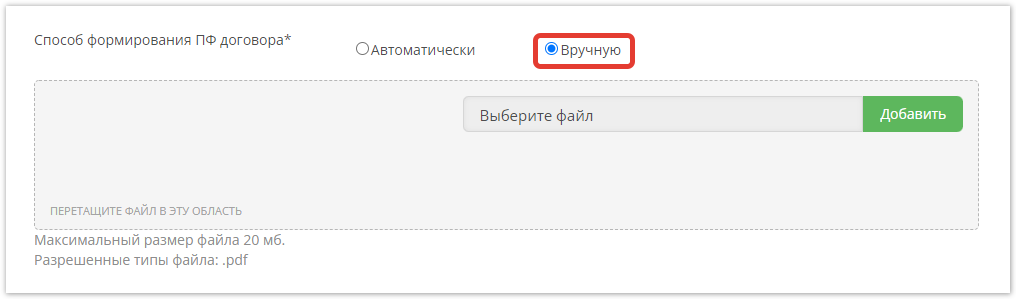
Способ формирования ПФ договора — выберите, каким способом будем формироваться печатная форма договора. Автоматически — печатная форма сформируется на основе введенных данных. Вручную — появится окно загрузки печатной формы договора, созданной покупателем самостоятельно. Допустимый формат файла — PDF.
Спецификация товаров — при клике по кнопке просмотреть в новой вкладке откроется спецификация товаров.
Далее следует информация о покупателе и поставщике. Данные из личных кабинетов подтягиваются автоматически, но их можно изменить при необходимости. Обязательные поля помечены значком *.
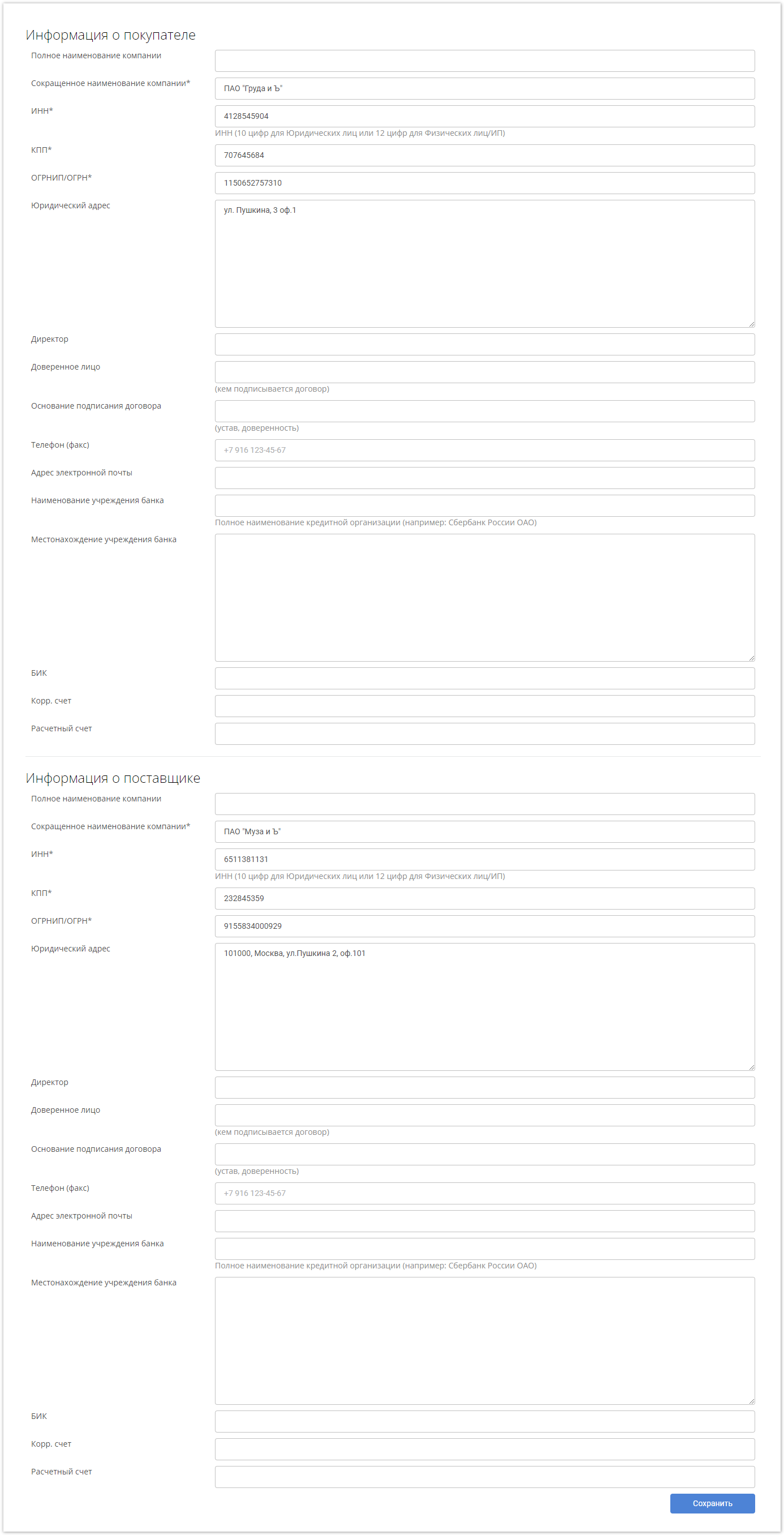
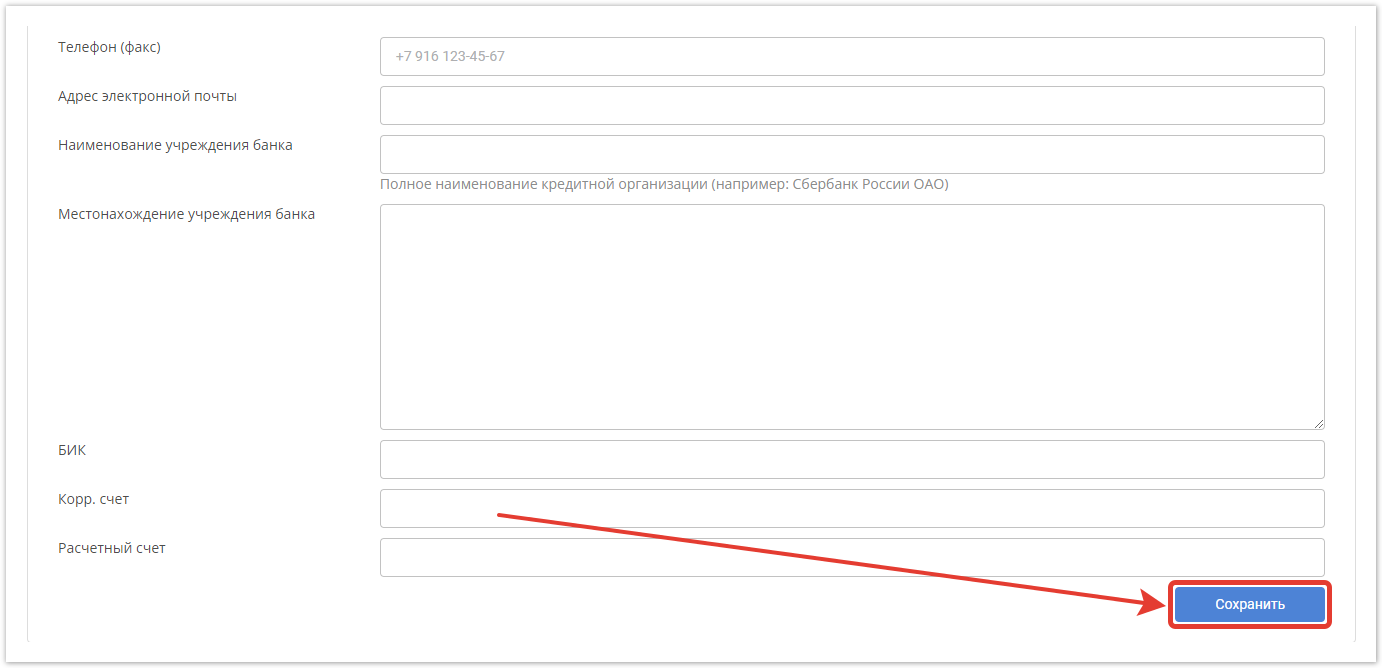
После нажатия кнопки Сохранить договор будет сформирован.
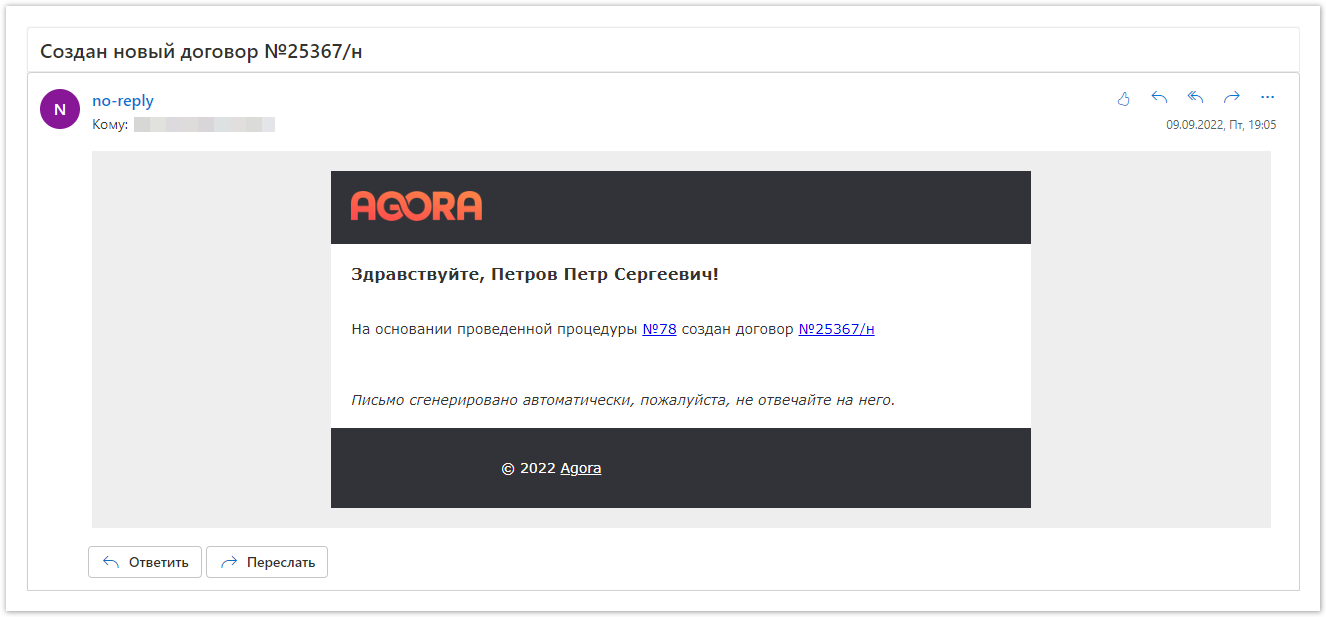
Поставщик получит уведомление на электронную почту и в личный кабинет о том, что был создан договор.
Подписание договора
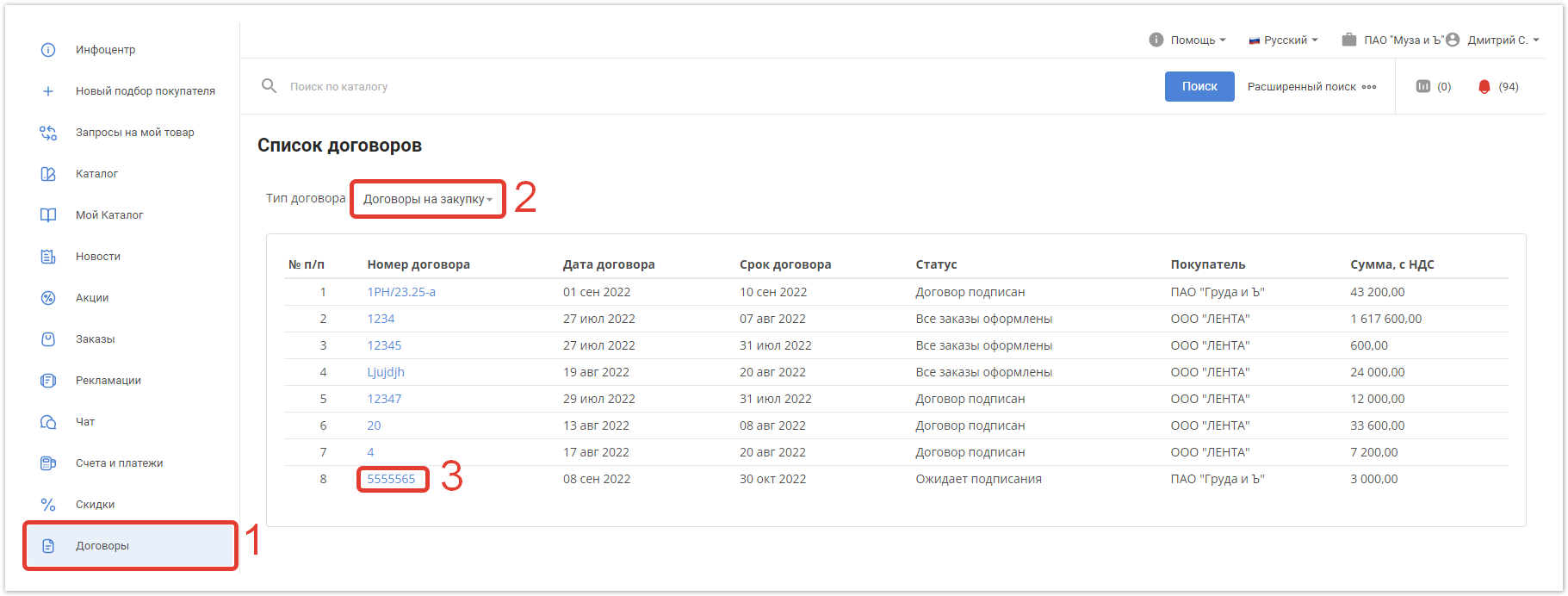
В личном кабинете поставщика он сможет ознакомиться с договором, кликнув по его номеру в разделе Договоры. Чтобы договор начал отображаться в списке, в выпадающем меню должен быть выбран тип договора Договоры на закупку.
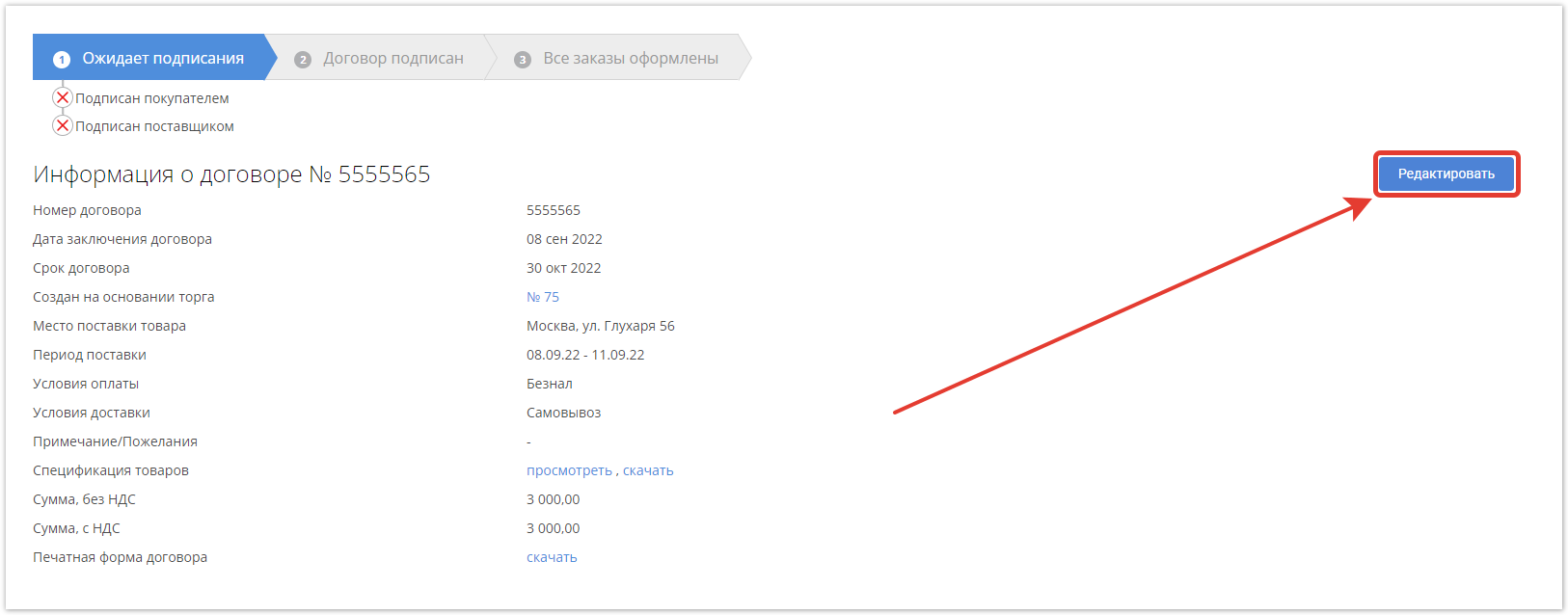
Покупатель, создавший договор, будет автоматически перенаправлен на страницу, где будет отображаться линейка статусов договора, информация о нем, а также данные покупателя и поставщика.
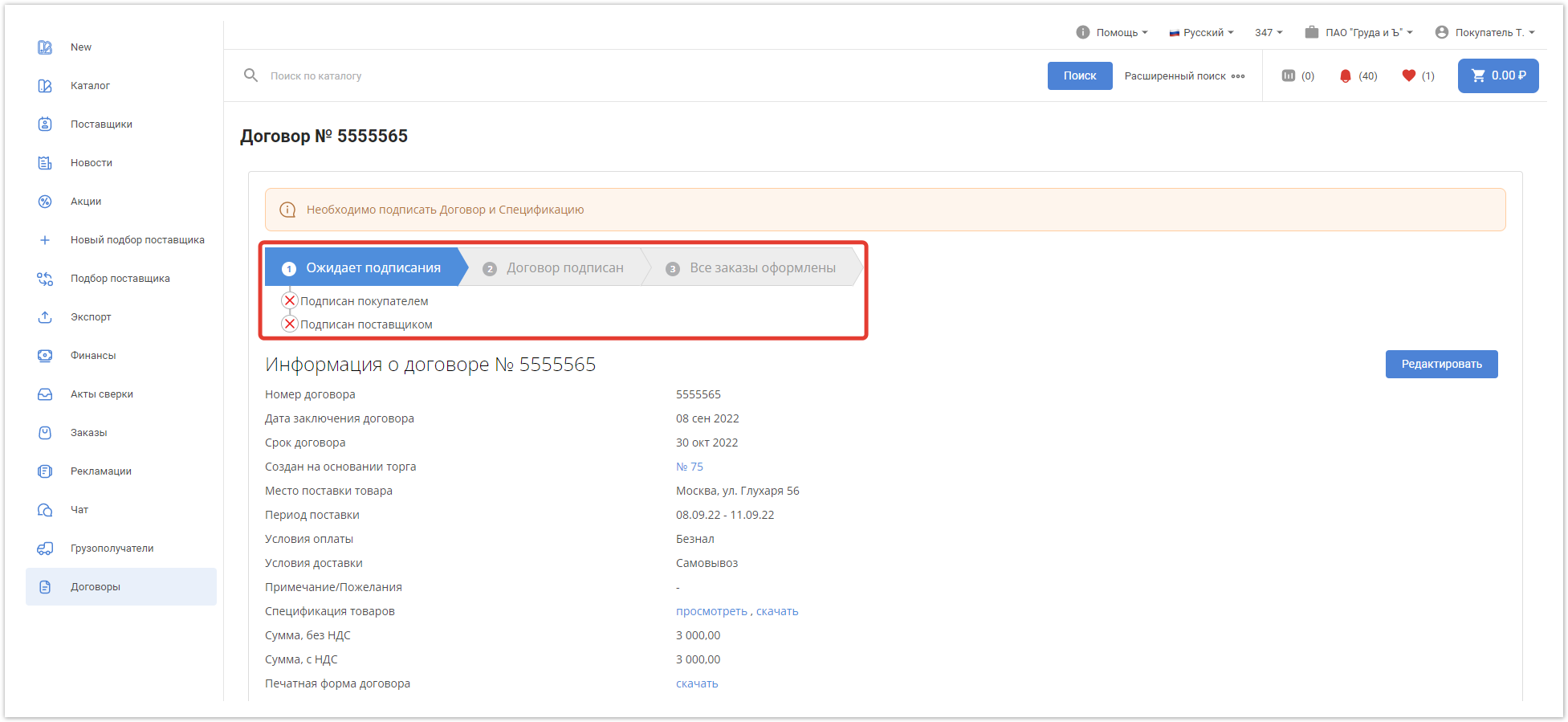
Поставщик после перехода в договор видит аналогичную страницу, за исключением кнопки Редактировать, она доступна только покупателю, организовавшему торг.
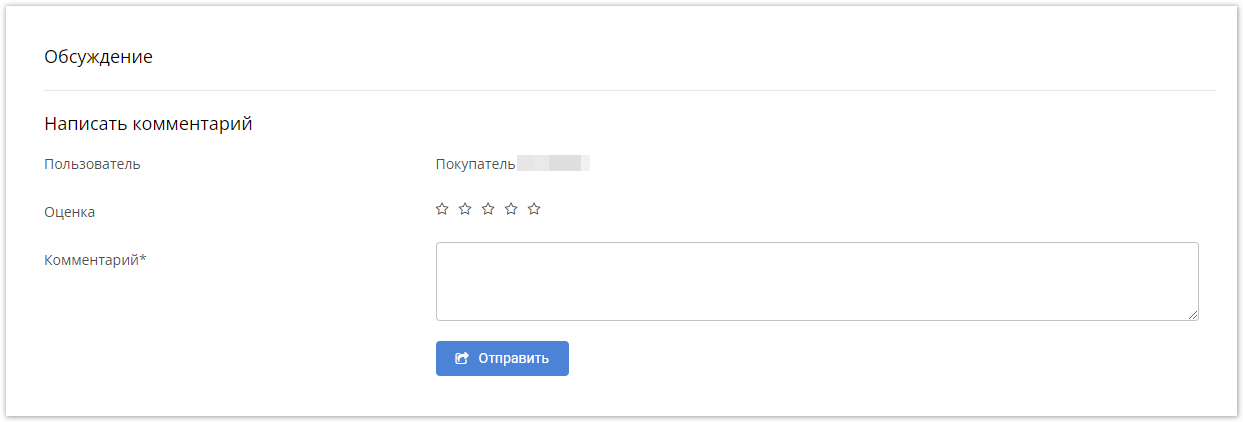
Покупатель и поставщик могут обсудить детали договора и необходимые изменения в разделе Обсуждение, который находится внизу страницы договора, а также в Чате AGORA или через любой другой доступный канал связи.
Подписание договора и спецификации с помощью ЭЦП
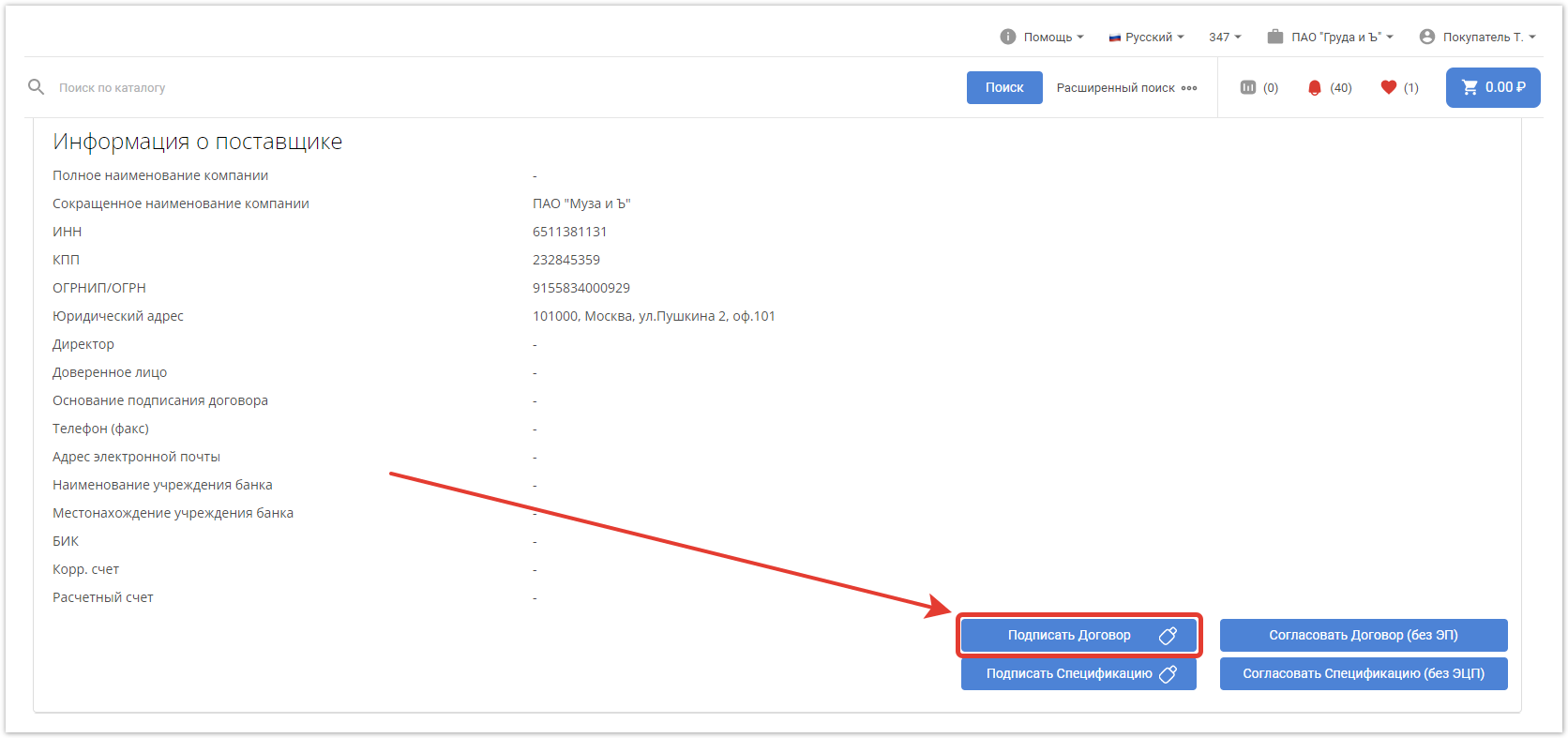
Подписать договор с помощью ЭЦП можно внутри самого окна договора по кнопке Подписать договор.
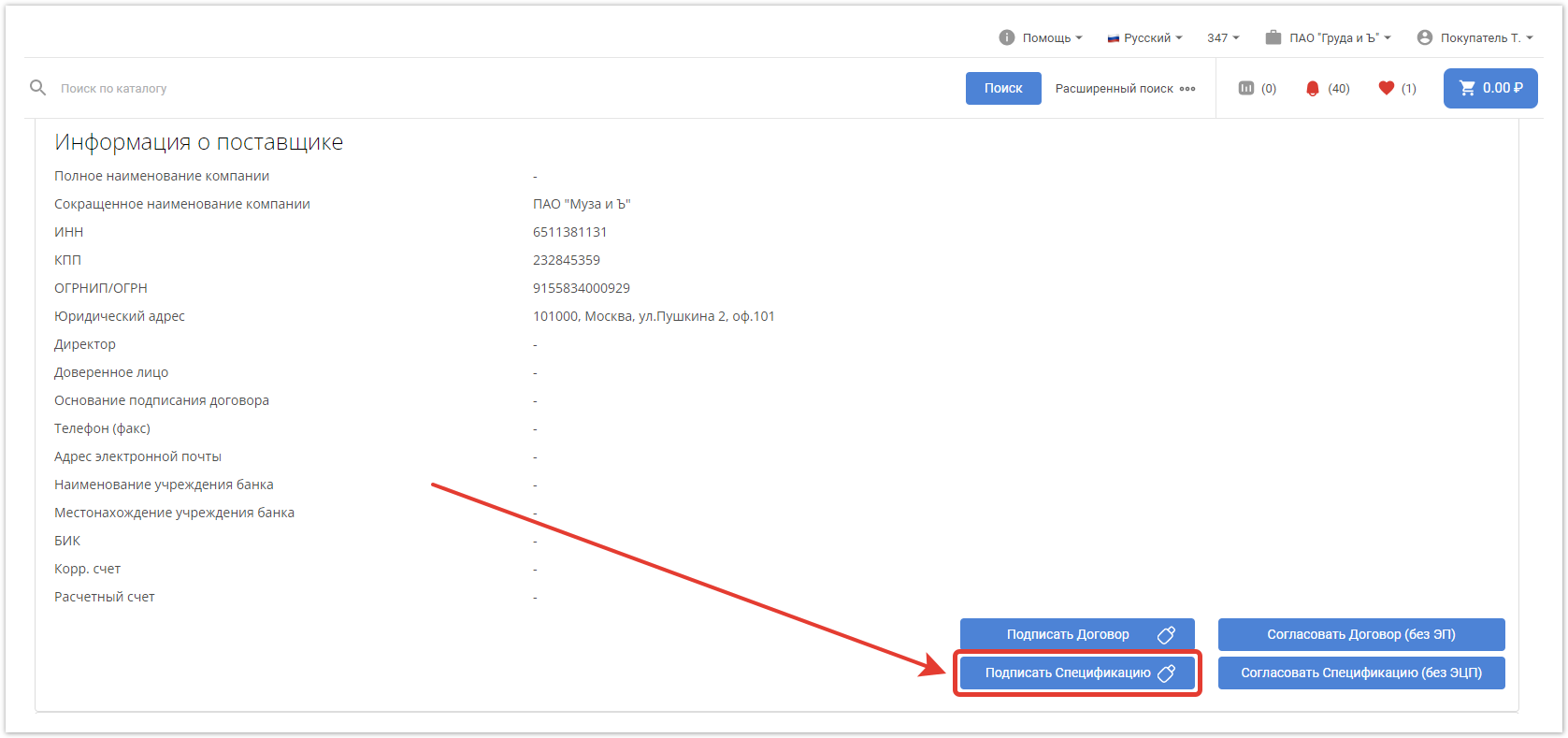
Также необходимо подписать и спецификацию, если они используются на проекте.
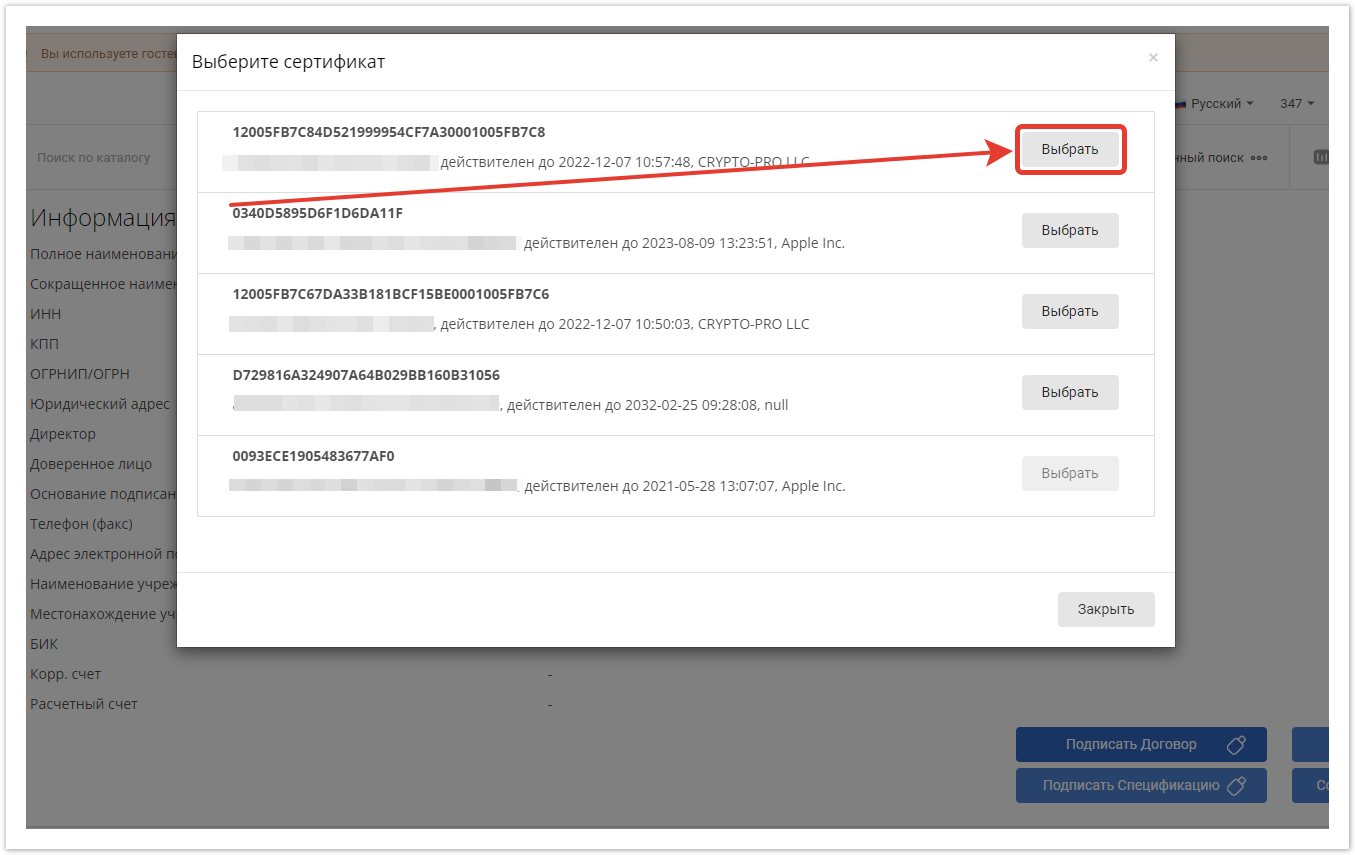
При клике по кнопке подписания откроется список электронных подписей, которыми можно подписать документы. Для подписи нажмите на кнопку Выбрать у нужной подписи.
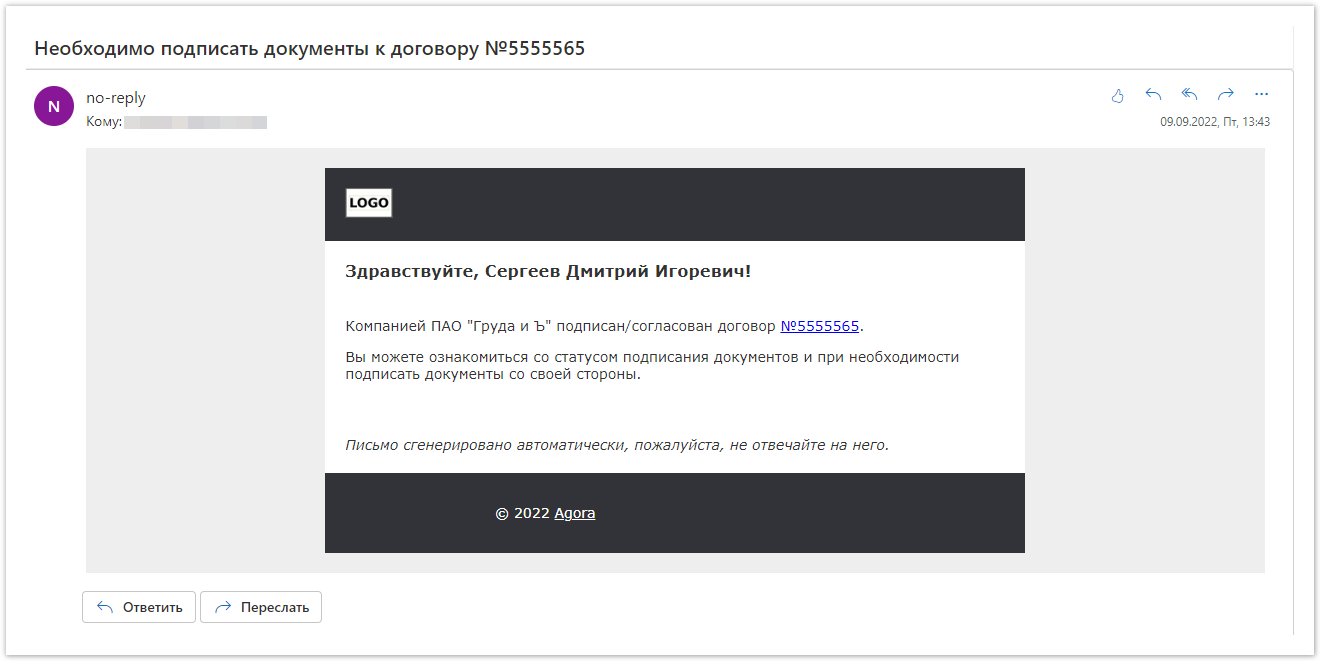
Когда одной стороной будут подписаны договор и спецификация, второй стороне будут отправлены уведомления о необходимости подписать документы.
После подписания документов обеими сторонами, статус в линейке изменится на Договор подписан.
Согласование договора без подписания ЭЦП
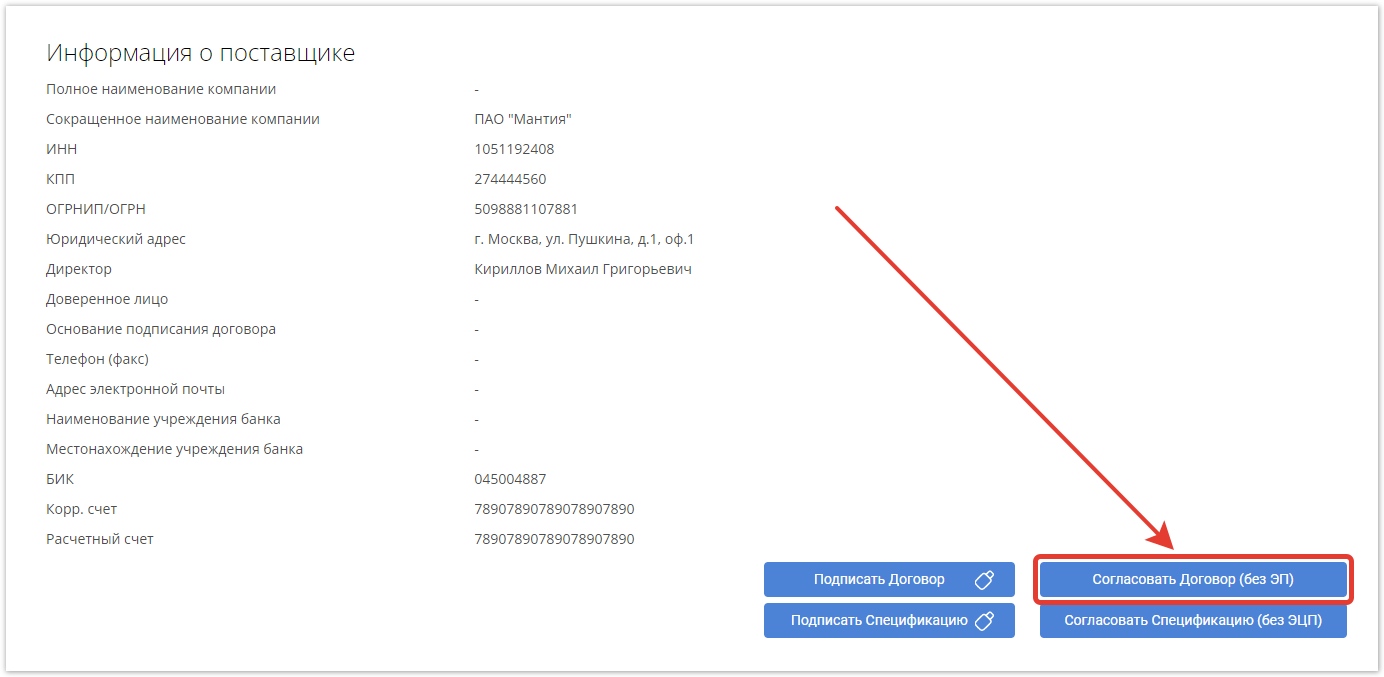
Если электронные подписи не используются, есть возможность согласовать документы без них. Для этого кликните по кнопке Согласовать Договор (без ЭП).
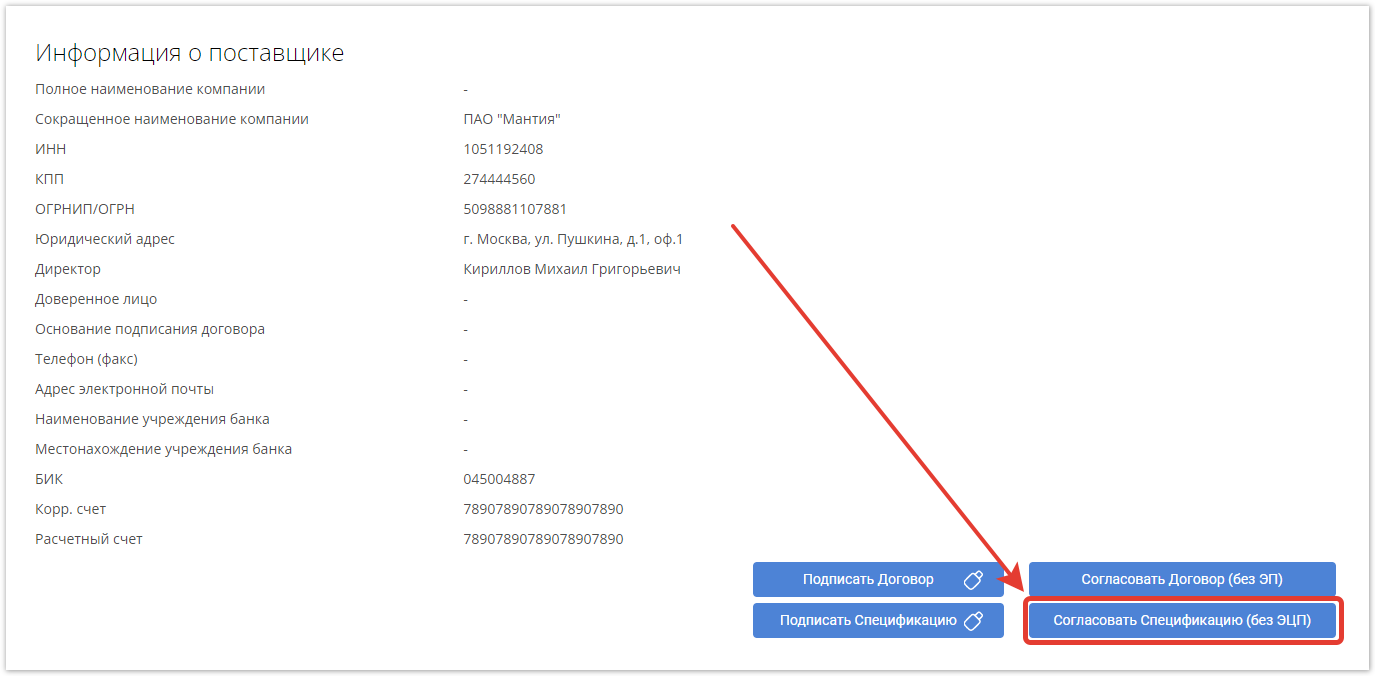
И по кнопке Согласовать Спецификацию (без ЭЦП), чтобы перевести договор в следующий статус.
После согласования договора можно создать заказ. Процесс создания заказа описан на отдельной странице.